1. Create a New Empty Project
Graphical Method:
- Go to the PROS Tab in the left ribbon
- Under
ConductorclickCreate Project - Select Directory for project folder, then name project (this will create a new folder containing your code named with the project)
- Select a kernal for the project to use.
latestis generally recommended, but has occasionally been broken. - Open Folder (If not done automatically)
Command Pallet Method:
- Press
ctrl + shift + pto open the command pallet - Type:
PROS: Create New PROS Project - Select Directory for project folder, then name project (this will create a new folder containing your code named with the project)
- Select a kernal for the project to use.
latestis generally recommended, but has occasionally been broken. - Open Folder (If not done automatically)
PROS Command Line (CLI):
Using the PROS Command Line for creating a new project is only really reasonable if you’re coding your own wrapper for PROS. Using the graphical method is suggested.
- Create a new integrated terminal. If you’ve installed PROS to the path of your computer then you can just open a new terminal (powershell, bash, etc). Otherwise, press
ctrl + shift + pand typePROS: Integrated Terminal. You can also access this graphically through the Pros Icon. - Run this command in the terminal:
pros conductor new-project [OPTIONS] PATH [[v5|cortex]] [VERSION]To access options, use the --help flag in any pros command.
2. Basic Explanation of Empty Project
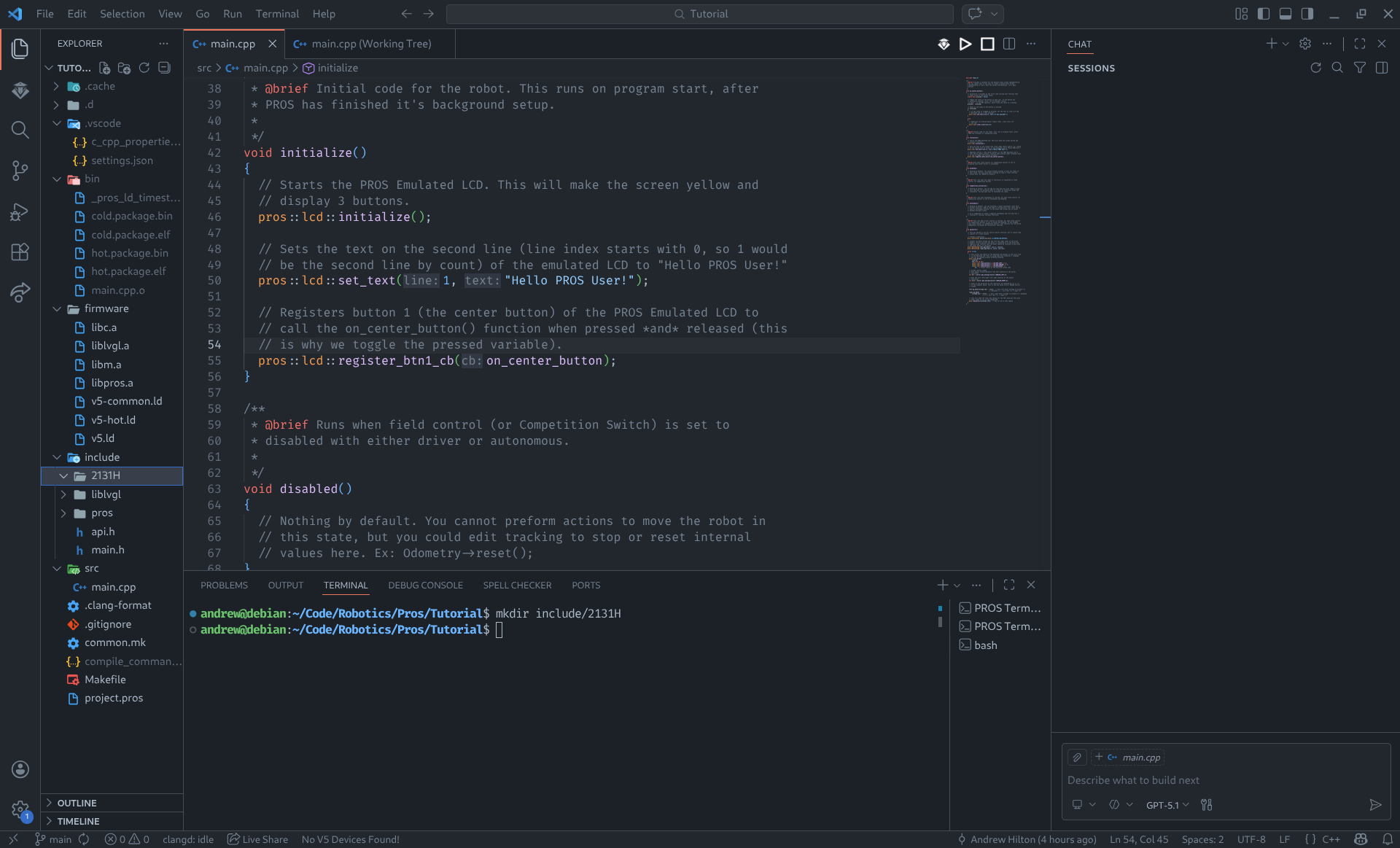
- If you installed clangd, you will see
.cache/~after opening a C/C++ file. This stores data for clangd to work. .d/- Stores the directory information (May not be present on windows).vscode/- Folder for configuration files of visual studio code. You should seec_cpp_properties.json. This makes PROS work with intellisense (an alternative to clangd). Adding asettings.jsonwill allow you to configure many things for the empty project. My personalsettings.jsonis included at the bottom of this page*.bin/- This directory stores the binary files. If you expand the folder, you will see a cold package and hot package. These files tell PROS what to install once compiled. Anything in a cold package will be uploaded once (for things like libraries / templates). Anything in a hot package will be uploaded every single download (Autonomous routes, etc). As of writing, PROS doesn’t support differential uploading.firmware/- This stores the binary files for the Standard Library, Vex API, and other things your code needs to work. You should seelibc.a,liblvgl.a,libm.a,libpros.a,v5-common.ld,v5-hot.ld, andv5.ld. If you are missing any of these files, your program will not compile and won’t work.include/- This directory is where all of your header files (.h, .hpp) for your project are stored. For more information on header files, check header-files-.h-.hpp.md. You should already have ainclude/prosandinclude/liblvglfolder. These folders contain the declarations for their respective libraries. Underinclude/prosyou should see all the header files for devices among other things that will allow for interfacing with vex.src/- This is the source (i.e. src) directory, it stores all your source files (.c, .cpp) for the project. This is where most of your time coding will be spent. You should seemain.cppthis is your main file, where everything starts execution from.- You might see a
.gitignore, this file chooses what doesn’t get uploaded to version control. (For example, configuration in~/.vscodemight be a personal change instead of a required change for all users of your repository) common.mk- This makefile configures how the program is linked together.compile_command.json- This is needed for clangd to work. If it is not present, please follow the instructions here: how-fix-clang.md.Makefile- This controls how the project is built. You can do lots of fun things here, including: make your project compile to a library, turn off hot / cold linking (not recommend), and change compile commands. You may want to addMAKEFLAGS+=-j8to your make file. This will make it use more cores on your cpu to build (can cut compile times in half).project.pros- This controls meta data for the icon, project description, and slot to be uploaded to. You can open this with the pros extension and get a graphical interpretation or as a json file by using the inbuilt text editor[Right click on file]>Open With.... If you set the icon toquestionthe controller will show a robot when program is run :D.- You may want to add a
.clang-formatfile to your project. This will tell Clang how to format your code automatically. My personal clang format is listed below**.
* Suggested .vscode/settings.json:
Note: if you want to use Fira Code font you will need to install it, instructions here
{ "editor.formatOnSave": true, "doxdocgen.generic.authorName": "Andrew Hilton", "doxdocgen.generic.authorEmail": "2131H", "editor.fontFamily": "'Fira Code'", "editor.fontLigatures": true,}** Suggested .clang-format. Using this will format your code like below.
Note: If you want to mess around with your own styling, visit here.
BasedOnStyle: GoogleLanguage: CppColumnLimit: 75IndentWidth: 2AlignTrailingComments: trueAllowShortBlocksOnASingleLine: trueAllowShortIfStatementsOnASingleLine: trueBreakBeforeBraces: CustomBraceWrapping: AfterClass: true AfterControlStatement: true AfterEnum: true AfterFunction: true AfterNamespace: true AfterObjCDeclaration: true AfterStruct: true AfterUnion: true BeforeCatch: true BeforeElse: true IndentBraces: falseAlignAfterOpenBracket: AlwaysBreakBinPackArguments: falseBinPackParameters: falsevoid opcontrol(){ // Devices (GROSS, Learn how to make a RobotConfig .cpp and .hpp) pros::Controller master(pros::E_CONTROLLER_MASTER); pros::MotorGroup left_mg({1, -2, 3}); pros::MotorGroup right_mg({-4, 5, -6}); while (true) { pros::lcd::print( 0, "%d %d %d", (pros::lcd::read_buttons() & LCD_BTN_LEFT) >> 2, (pros::lcd::read_buttons() & LCD_BTN_CENTER) >> 1, (pros::lcd::read_buttons() & LCD_BTN_RIGHT) >> 0); // Prints status of the emulated cortex LCD // Arcade control scheme // Gets amount forward/backward from left joystick int dir = master.get_analog(ANALOG_LEFT_Y); // Gets the turn left/right from right joystick int turn = master.get_analog(ANALOG_RIGHT_X); left_mg.move(dir - turn); // Sets left motor voltage right_mg.move(dir + turn); // Sets right motor voltage pros::delay(20); // Run for 20 ms then update }}Not an AD: Do you find it frustrating that my .clang-format file puts brackets on a new line? Consider contributing by adding your own styles! 